

Have you ever opened your laptop to find an important file missing right before a meeting? Or updated a document on your phone only to notice the changes never appeared on your desktop? Situations like these raise one big question. Are your files really syncing the way they should?
If you use OneDrive daily and still face confusion or delays, learning how to sync OneDrive properly can completely change how smoothly you work. Let us walk through everything in a simple but technically accurate way so your files stay exactly where you expect them to be.
What Does OneDrive Sync Really Mean?
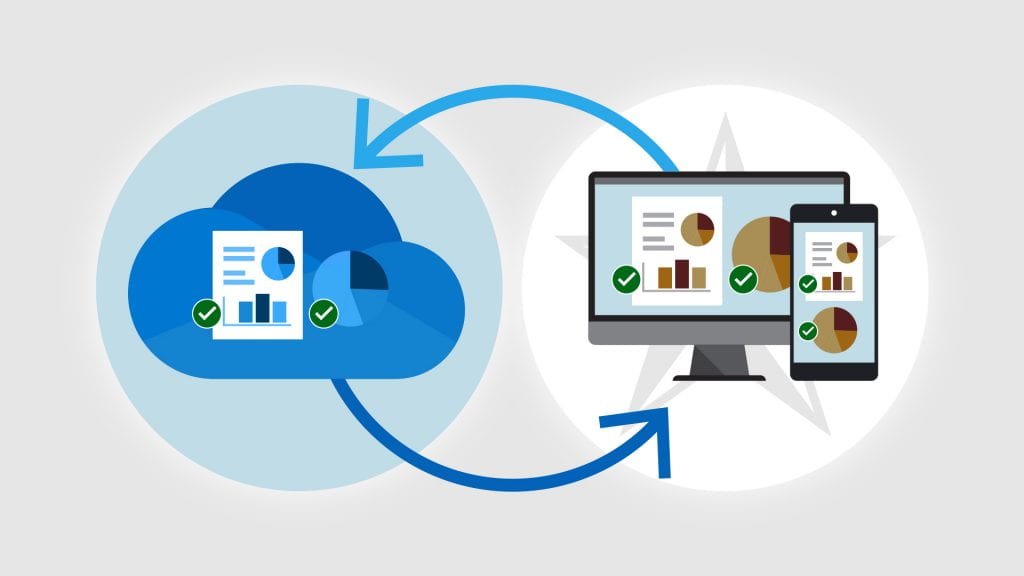

Before getting into the steps of how to sync OneDrive, it helps to understand what syncing actually does. Syncing creates a secure connection between your device and Microsoft’s cloud servers. Every change made to your files is updated both locally and online in near real time.
This process allows:
- Access to the same files from multiple devices
- Instant updates across systems
- Automatic cloud backup
- Easy file sharing and collaboration
Behind the scenes, file syncing with OneDrive constantly monitors changes, encrypts your data and keeps everything aligned across platforms.
Why Proper OneDrive Sync Matters For Productivity?
When syncing works the right way, productivity improves without effort. Files open faster, collaboration becomes smoother and data loss risks drop sharply. On the other hand, improper configuration can lead to duplicated files, version conflicts and lost work.
Learning how to sync OneDrive correctly helps you:
- Eliminate manual file transfers
- Reduce dependency on USB drives and email attachments
- Maintain version control
- Work seamlessly across office, home and mobile
The result is a digital workspace that feels organized instead of chaotic.
Step by Step Guide on How to Sync OneDrive Properly
Let us now move into the technical process of how to sync OneDrive in a way that ensures long term stability and performance.
1. Sign In with the Correct Microsoft Account
- Open your web browser and go to the official Microsoft website.
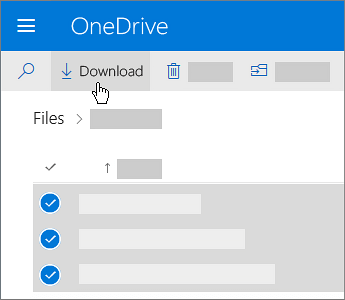
- Search for “Download OneDrive” and download the desktop application.
- Once installed, launch the OneDrive app from your system.
- When the sign in screen appears, enter your official Microsoft email and password.
- Complete the verification process if prompted.
Always use a single primary account for syncing. Logging in with multiple accounts on the same system often creates folder duplication and sync conflicts.

Source: Microsoft
2. Choose the Right Sync Folder Location
- After sign in, OneDrive will ask you to choose a folder location for syncing.
- Click on “Change location” if you want to select a different drive.
- Choose a drive with enough free space and stable read write performance.
- Click “Use this folder” to confirm your selection.
Avoid changing this location after setup. Frequent changes can break the sync connection and create duplicate folders.
3. Select Folders for Sync
- On the next setup screen, select “Choose folders to sync.”
- You will see a list of all folders available in your OneDrive.
- Tick only the folders you need on your device.
- Click “Next” to confirm your selection.
Selective syncing keeps your device storage clean and speeds up overall sync performance.
4. Verify Background Sync Permissions
- Click the OneDrive cloud icon from the system tray.
- Open “Settings” and go to the “General” tab.
- Make sure “Start OneDrive automatically when I sign in to Windows” is enabled.
- Open your system battery settings and disable battery restrictions for OneDrive.
- Check your antivirus software and allow OneDrive as a trusted application.
If background access is blocked, syncing may stop without showing any visible errors.
5. Confirm Network Stability
- Connect your system to a reliable high speed internet connection.
- Avoid switching between multiple networks during large file uploads.
- If using mobile hotspot, ensure continuous signal strength.
- Restart your router if sync appears slow or stuck.
OneDrive requires a stable connection to ensure smooth and uninterrupted data syncing.
6. Verify Sync Status
- Click on the OneDrive cloud icon in the system tray.
- Check the current sync status message.
- Look for “Files are up to date” to confirm everything is fully synced.
- If you see “Sync paused,” click “Resume syncing.”
This final step confirms that OneDrive is actively connected and working properly.
Did You Know?
OneDrive can sync over 100,000 files in a single library but performance depends heavily on file size, internet speed and folder structure? Optimizing your sync setup is often the difference between instant access and constant delays.
How OneDrive Sync Supports Team Collaboration?


Teams rely on accurate syncing to avoid document confusion. When syncing works correctly, everyone views the same version of a file without repeated downloads or manual updates.
With strong file syncing with OneDrive, teams benefit from:
- Real time document co authoring
- Centralized file storage
- Automatic version history
- Secure access control
This setup removes delays caused by outdated documents and ensures faster decision making.
OneDrive Data Migration and Its Role in Syncing
During business transitions, many organisations move large volumes of data to the cloud through OneDrive data migration. This process transfers existing files from local servers, external drives or legacy systems into OneDrive.
Once migration is complete, syncing keeps that data continuously updated. For migration success, correct sync configuration is critical. Without it, users may experience duplicate files or broken folder structures across devices.
Common Reasons Behind OneDrive Not Syncing

Even after proper setup, users still face situations where OneDrive not syncing becomes a regular problem. These issues usually come from a few technical factors that silently interfere with the sync engine.
- Outdated OneDrive Application
When the OneDrive app is not updated, it may fail to communicate properly with Microsoft servers. Security updates, bug fixes and performance improvements are released frequently. Running an older version often results in stalled uploads, missing status updates or repeated sync errors.
- Account Sign In Conflicts
Using multiple Microsoft accounts on the same system can confuse the syncing process. Personal and work accounts may try to sync to different directories at the same time, which leads to duplicated folders, login loops or incomplete synchronization.
- Insufficient Local Storage
Syncing requires enough free space on your device to temporarily store and process files. If your system drive is nearly full, OneDrive may pause downloads without showing clear warnings. This can give the impression that syncing has stopped completely.
- Restricted Background Activity
Power saving modes, system optimisation tools and antivirus software can block OneDrive from running continuously. When background permissions are restricted, syncing pauses automatically whenever the app is not in focus.
- Corrupted Cache Files
Over time, OneDrive stores temporary cache data to manage file changes. If these cache files become corrupted due to abrupt shutdowns or failed updates, the sync process may freeze or behave inconsistently.
Understanding these root causes plays a major role in mastering how to sync OneDrive efficiently and keeping your file flow stable across all devices.
How to Fix OneDrive Sync Issues Effectively?


If your files stop updating, resolving OneDrive sync issues requires a methodical approach:
- Restart the OneDrive application
- Check sync status from the system tray
- Update the OneDrive client
- Verify account credentials
- Reset the OneDrive cache if required
These steps resolve most syncing problems without needing system level intervention.
Best Practices for Long Term OneDrive Sync Performance
Once you understand how to sync OneDrive, maintaining its performance becomes the next priority. A few key practices ensure lasting stability:
- Keep file names simple and avoid unsupported characters
- Avoid syncing extremely large folders unless required
- Monitor storage limits regularly
- Update the OneDrive app consistently
- Maintain strong internet reliability
These measures reduce conflicts and prevent unexpected syncing failures.
Security and Compliance in OneDrive Sync
OneDrive uses encryption for both data in transit and at rest. When syncing is configured correctly, your business data remains protected against unauthorized access. Administrators can also enforce access policies, device restrictions and audit logs to ensure regulatory compliance.
A secure sync environment ensures that data accessibility never compromises data safety.
The Real Value of Learning How to Sync OneDrive
When users truly understand how to sync OneDrive, file management becomes effortless. There is no need to second guess whether a document is saved, updated or backed up. Every edit reflects instantly across devices, improving accuracy and efficiency.
From daily users to enterprise teams, mastering sync turns OneDrive into a powerful digital workspace instead of just another storage folder.
Final Thoughts
If missing files, delayed updates or duplicate documents have slowed your work, it is time to reconfigure your sync properly. Learning how to sync OneDrive is not just a technical task. It directly impacts your productivity, collaboration and data security.
With correct setup, stable connectivity and a few best practices, OneDrive sync becomes one of the most reliable tools in your digital workflow.
Connect With Us for Valuable Insights
Stay updated with the latest tips, guides and best practices for OneDrive and other productivity tools. Follow us and Connect with our team to make the most of your digital workspace.