



Have you ever opened your laptop one morning and noticed an important file was missing? Or maybe your system suddenly crashed and you started worrying about years of photos, work documents or personal data. These situations are more common than we think. Many people only realize the importance of backups after something goes wrong. That is why learning how to backup computer to OneDrive can save you from stress, panic and permanent data loss.
In this blog, we will talk about how to backup computer to OneDrive, why it matters and how you can do it easily even if you are not very technical. By the end, you will feel confident about keeping your files safe.
Why Backing Up Your Computer Matters So Much?
Your computer stores more than just files. It holds memories, work, plans and important information. A small mistake like accidental deletion or a big issue like hardware failure can wipe everything out.
Backing up your data gives you peace of mind. If something happens to your device, your files remain safe in the cloud. When you understand how to backup computer to OneDrive, you create a safety net that works quietly in the background.
OneDrive is popular because it is simple, secure and already built into Windows systems. You do not need extra tools or complex setup.
What Makes OneDrive a Good Backup Choice?
Before explaining how to backup computer to OneDrive, it helps to know why OneDrive is trusted by so many users.
Some key reasons include:
- It is integrated with Windows
- Files can be accessed from any device
- Automatic syncing reduces manual work
- Strong security and encryption
- Easy recovery of deleted files
All these features make OneDrive suitable for daily backups without extra effort.
Did You Know?
Many users assume their files are automatically backed up just because they use OneDrive. In reality, only selected folders are synced unless you set it up properly. Learning backing up computer to OneDrive correctly ensures important folders like Desktop, Documents and Pictures stay protected.
How to Backup Computer to OneDrive Using Built In Windows Backup?

Let us now get into the main part. The most common way to start is using OneDrive’s built in folder backup option. This method is simple and works well for most users.
Step 1: Sign in to OneDrive
- Click the OneDrive cloud icon in the system tray
- Sign in using your Microsoft account
- Choose or confirm your OneDrive folder location
Once signed in, OneDrive runs quietly in the background.
Step 2: Choose Folders to Back Up
To understand how to backup computer to OneDrive, folder selection is very important.
- Open OneDrive settings
- Go to the Backup tab
- Select Desktop, Documents and Pictures
- Click Start backup
Now these folders will automatically sync to OneDrive.
Step 3: Let OneDrive Sync Your Files
After setup, OneDrive starts uploading your files. The speed depends on file size and internet connection. Over time, updates happen automatically, giving you faster file syncing with OneDrive without manual effort.
How to Backup Computer to OneDrive Manually?
Some users prefer more control over their backups instead of automatic syncing. Manual backup allows you to choose specific files or folders and upload them only when needed. It is a good option if you handle large files, have limited internet speed or want to review files before backing them up.
Here’s how we can backup computer to OneDrive manually:
- Open your OneDrive folder
- Drag and drop files or folders into it
- Wait for syncing to complete
This method works well for large folders or occasional backups.
Understanding How to Sync OneDrive Properly

Many people ask about how to sync OneDrive correctly so files stay updated across devices. Syncing simply means that when you change a file on your computer, the same change appears in OneDrive and other linked devices. To ensure smooth syncing:
- Keep OneDrive running
- Avoid pausing sync for long periods
- Check sync status icons regularly
Once set up properly, learning how to sync OneDrive becomes less about effort and more about habit.
OneDrive Data Migration for Existing Files
If you already have files stored on your computer or another storage system, OneDrive data migration becomes important.
OneDrive data migration means moving existing files from local storage or another cloud service into OneDrive. You can do this by:
- Copying files into the OneDrive folder
- Using Microsoft migration tools for large data
- Organizing files before uploading
Proper OneDrive data migration helps keep everything structured and easy to find later.
Common Mistakes to Avoid While Backing Up
Even after learning how to backup computer to OneDrive, some mistakes can reduce its effectiveness.
Avoid these issues:
- Ignoring storage limits
- Assuming all folders are backed up
- Turning off sync unknowingly
- Not checking backup status regularly
A quick check once in a while keeps your backups reliable.
How to Backup Computer to OneDrive on Multiple Devices?
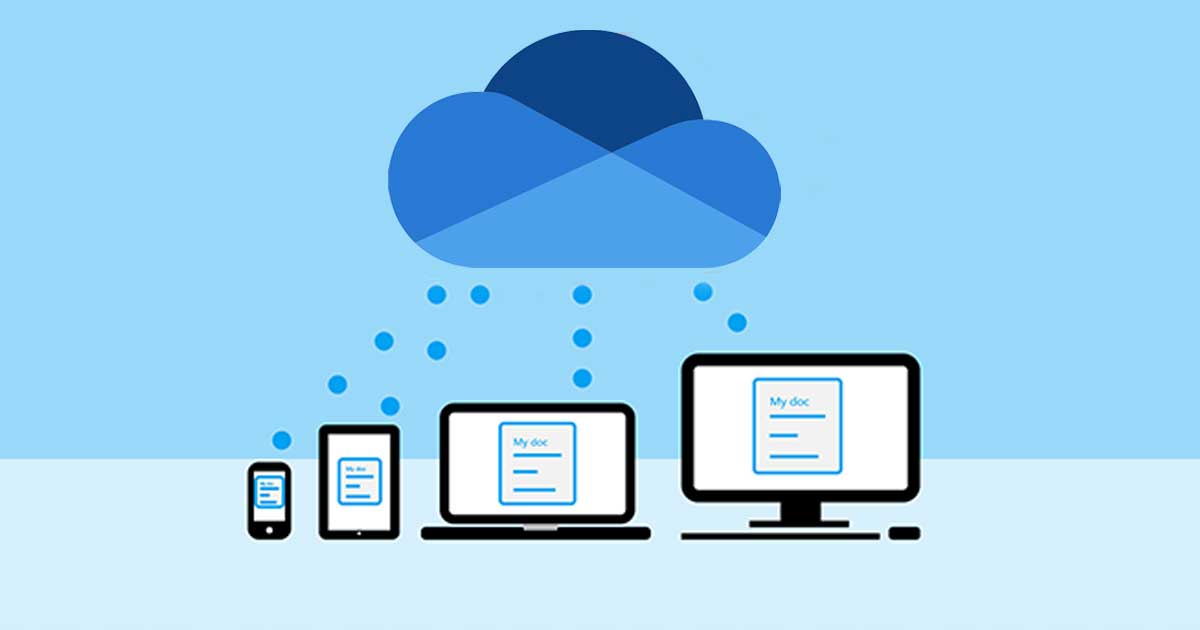
If you use more than one device, OneDrive makes managing your files much easier. Once you understand how to backup computer to OneDrive on one system, you can apply the same setup to your other devices, whether it is another PC, laptop or even a tablet.
Start by signing in with the same Microsoft account on each device and enabling folder backup for important folders like Desktop, Documents and Pictures. Once set up, OneDrive keeps all files synced automatically. Any changes you make on one device like adding a new document or updating a photo, it will appear on all your other devices. This ensures faster file syncing with OneDrive, seamless access to your files wherever you are and consistent organization across all your devices. It is especially helpful for users who switch between home, work or mobile devices regularly.
Restoring Files from OneDrive When Needed
Backup is only useful if you can restore files easily.
To restore files:
- Open OneDrive online
- Locate the required file
- Download or restore it to your computer
Deleted files remain in the recycle bin for a limited time, giving you another layer of protection.
Benefits of Using OneDrive for Long Term Backup
Once you get comfortable with how to backup computer to OneDrive, the benefits become clear over time.
Some long term advantages include:
- Reduced risk of data loss
- Easy collaboration and sharing
- Automatic updates without reminders
- Secure storage with Microsoft protection
These benefits make OneDrive suitable for both personal and professional use.
How to Backup Computer to OneDrive for Business Users?
Business users often deal with large volumes of data. Knowing how to backup computer to OneDrive at a professional level can prevent costly downtime.
For businesses:
- Use structured folders
- Apply access permissions
- Plan OneDrive data migration carefully
- Monitor sync status regularly
This approach keeps business data secure and accessible.
Final Thoughts
Data loss can happen when you least expect it. Waiting for something to go wrong is a risk no one should take. Learning how to backup computer to OneDrive is one of the simplest and smartest steps you can take to protect your files.
Whether you choose automatic backups or manual control, OneDrive offers flexibility and reliability. With proper setup, smooth syncing and planned OneDrive data migration, your files stay safe and accessible.
Start today, set up your backup, check your folders and enjoy the peace of mind that comes from knowing your data is protected.
Connect With Us for Valuable Insights
Stay updated with practical tips, guides and expert advice on cloud storage, backups and tech solutions. Reach out to us to get personalized insights and keep your data secure.


