


Microsoft Teams: Invoke Content Camera on Desktop Feature
This blog covers bit more about Feature ID: 118587 related to Content Camera on Desktop Feature
Microsoft Teams has been one of the most popular video conferencing tools over the last few years. Businesses and individuals widely use it for remote communication and collaboration. With its new feature update, Microsoft Teams makes it easier for users to share content from a certified Teams device during a meeting.
The new feature eliminates the need for users to turn on sharing from a content camera in Microsoft Teams via the Share tray on the Teams Meeting stage. Instead, users can start and stop sharing content directly from a certified Teams device. This enables presenters to share a whiteboard, document, or video more quickly during a meeting.
Previously, sharing content in Microsoft Teams was cumbersome. Users had to go through multiple steps to share content, which could be time-consuming, especially if presenting something urgent. With the new feature, users can start sharing content with just a few clicks, making the process much faster and more efficient.
One of the key benefits of this new feature is that it allows users to present content more seamlessly during a meeting. With the ability to share content directly from a certified Teams device, users can quickly share a whiteboard or document to illustrate their point and keep the meeting on track. This can be particularly useful when time is of the essence, such as during a client meeting or a sales pitch.
Sharing content from a content camera in Microsoft Teams via Share tray can sometimes lead to technical glitches or delays, which is frustrating for everyone involved. By allowing users to start and stop sharing content directly from a certified Teams device, Microsoft Teams has eliminated this potential issue. Another benefit of this new feature is that it reduces the chances of technical issues during a meeting.

The new feature in Microsoft Teams is a welcome update that makes sharing content during meetings much easier and more efficient. It streamlines the process, reduces the chances of technical issues, and enables presenters to share their content quickly and seamlessly. As more and more people continue to work remotely, tools like Microsoft Teams are becoming increasingly important, and this new feature is another step towards making remote collaboration even more effective.
This section from Microsoft Official documentation shows how to use this feature:
Suggested Camera settings
Once the camera is installed in the room, set it up on that room’s Microsoft Teams Rooms console:
Select Settings icon., log in as Admin, and select Peripherals.
In the Content Camera section, select the content camera and make sure that the Content Enhancements option is selected.
(Optional) If the camera was installed upside down because the camera was mounted from the ceiling, check the Rotate content camera 180° option.
Select Save and exit.
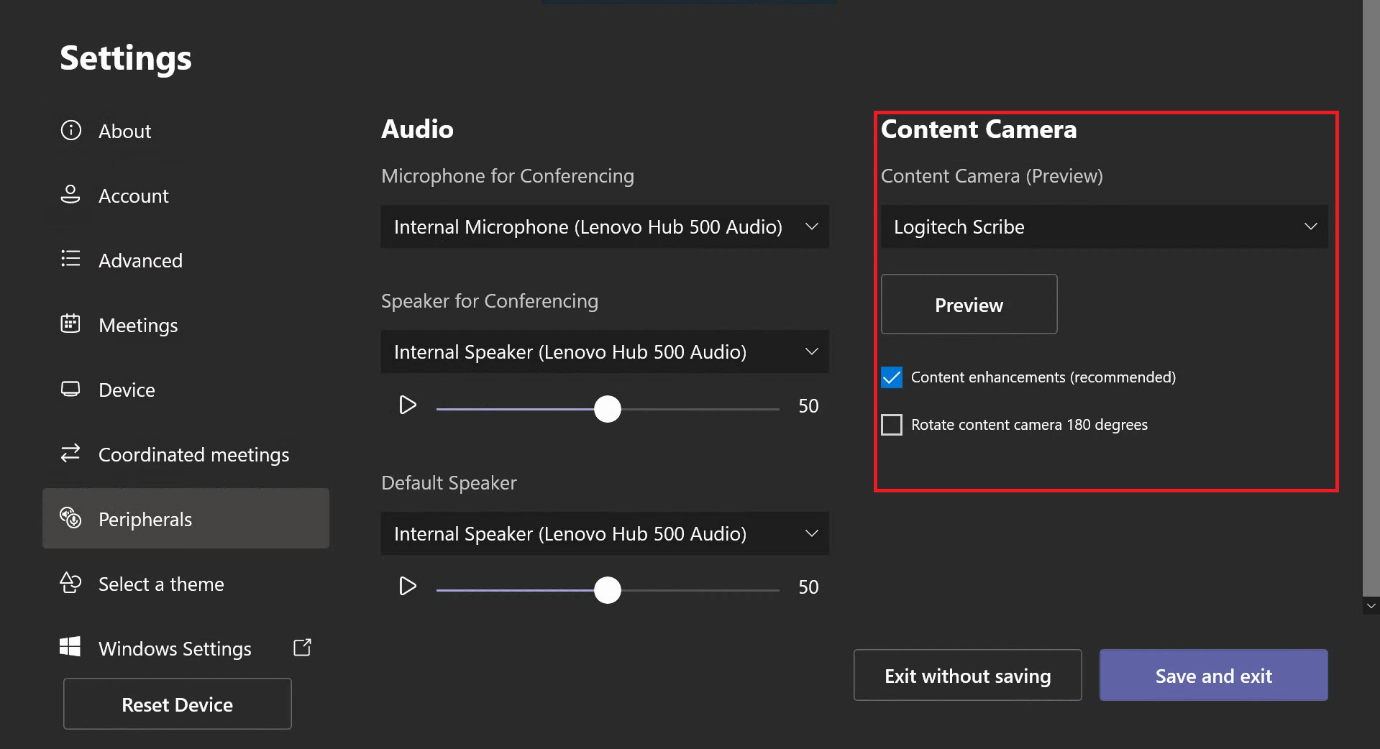
Here are a few best practices for setting up a content camera for your Microsoft Teams meeting. This is a significant factor in thinking about the camera placement with the whiteboard. Some advice to help you do it properly is provided below.
A content camera should be centered on the whiteboard in vertical and horizontal planes. This makes it so the whiteboard is in full view of the camera so that viewers at a distance can follow along with the presentation. There is the possibility that the camera must be mounted above the whiteboard due to height constraints imposed by local building codes.
In this situation, mount the camera so its center is directly over the whiteboard, no more than 6 inches (152 mm) above the board’s top. By doing so, we may stay under any applicable height constraints while allowing remote participants a clear view of the whiteboard.

Ensure there is at least a 6 in. (152 mm) horizontal margin around the camera image before setting it up. This guarantees that distant attendees can still see content written near the whiteboard’s edges. The camera preview in the Microsoft Teams Rooms app can help you establish the optimal positioning of the camera, allowing you to make fine-tuned modifications until you’re happy with the shot.
By adhering to these rules, you can put your content camera in the optimal position for your Microsoft Teams conference call. With the right equipment, you can guarantee that all of your audience members can see and understand your presentation, no matter where they are. As a result, everyone involved, whether physically present or joining remotely, will have a more exciting and productive time.
Feature ID: 118587
Added to roadmap: 3/2/2023
Last modified: 3/2/2023
Product(s): Microsoft Teams
Cloud instance(s): DoD, GCC, Worldwide (Standard Multi-Tenant), GCC High
Platform(s): Mac, Desktop
Release phase(s): General Availability
Source Microsoft Teams Roadmap and Official Documentation
Other Teams Related Blogs “Teams Phone System“


